


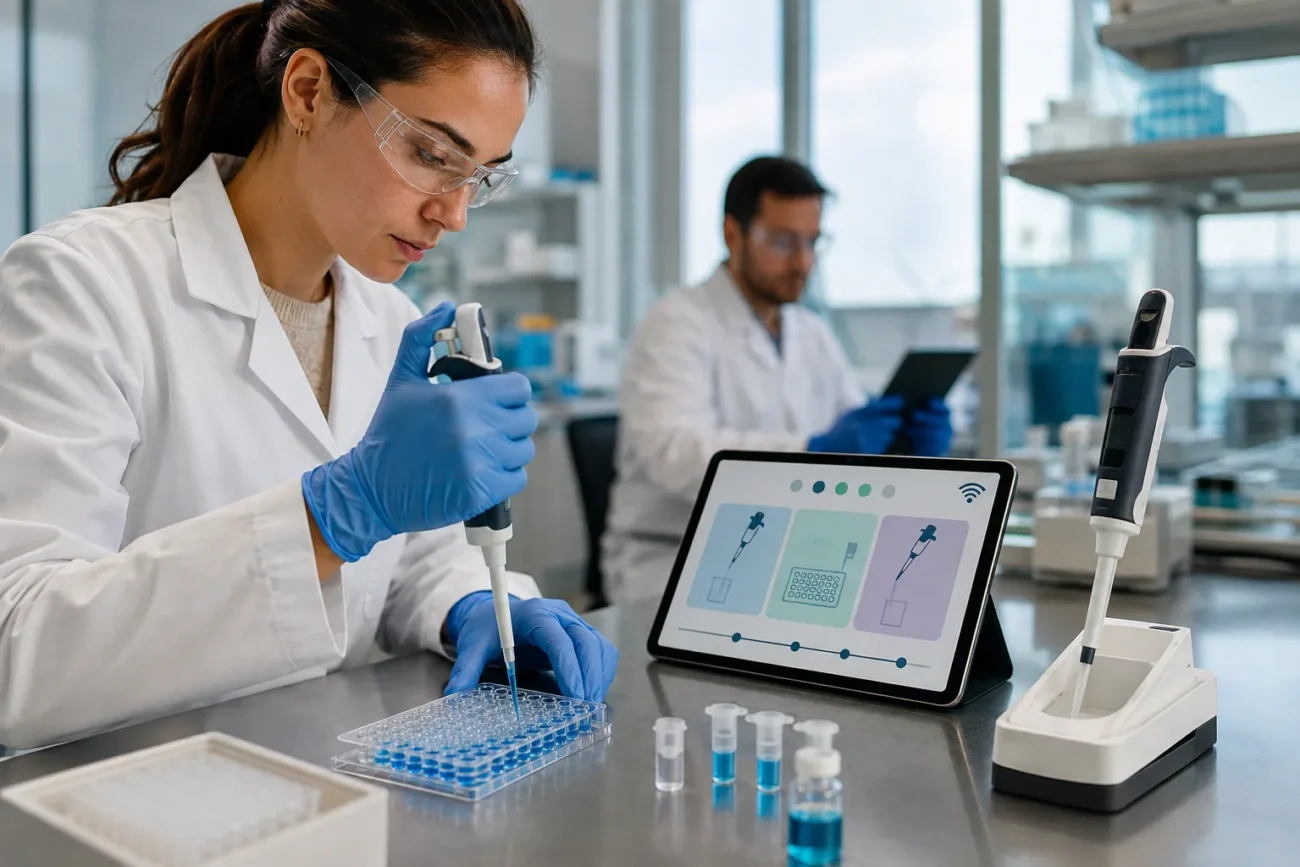
Mypipette is commonly searched by laboratory users who want to understand, access, or troubleshoot My Pipette Creator, a web-based application from Thermo Fisher Scientific. It helps researchers create, edit, store, transfer, and share programs for compatible electronic pipettes.
The name can be confusing. Some third-party articles describe MyPipette as a generic smart laboratory pipette with automatic calibration and measurement tracking. However, the verified product is primarily an electronic pipette programming and protocol-management application available through Thermo Fisher Connect.
This guide explains what My Pipette Creator does, which pipettes it supports, how to connect a device, and how to use its Protocol Library. It also examines important limitations, common connection problems, pipetting best practices, and alternative software.
What Is MyPipette?
MyPipette, when used in Thermo Fisher’s laboratory context, refers to the My Pipette Creator app. It provides a central location where compatible electronic pipette users can build and manage pipetting programs from a computer.
The application is designed to reduce the need to program every method manually on a pipette’s small interface. Researchers can prepare custom programs, save them to their accounts, transfer them to supported instruments, and share them with laboratory colleagues.
This makes Thermo Fisher My Pipette Creator different from a standard manual pipette. It does not physically aspirate or dispense samples by itself. Instead, it works with compatible E1-ClipTip and FluidEase Pro ClipTip electronic pipettes.
The one-word query can also produce unrelated results, including a French pet-care store and similarly named laboratory products. Therefore, users looking for electronic pipette software should search for the full name, My Pipette Creator, rather than only “MyPipette.”
According to the official My Pipette Creator page, its principal functions include centralized programming, protocol transfer, pipette management, and program sharing.
Why Precision Pipetting Matters
Precision pipetting is essential whenever a laboratory handles small liquid volumes. A difference of only a few microliters can affect concentrations, reaction conditions, calibration curves, and final experimental results.
Errors may come from poor technique, incorrect tip selection, unsuitable aspiration speed, inconsistent immersion depth, or an inaccurate instrument. Repeated manual programming introduces another possible source of variation.
For laboratories, accurate liquid handling is connected to:
- Reliable measurements
- Experimental consistency
- Reproducible laboratory results
- Better scientific data quality
- Lower risk of programming errors
- More standardized workflows
Software cannot replace correct pipetting technique or instrument calibration. However, a connected system can help researchers use the same program across compatible devices and users. That improves workflow standardization and makes it easier to reproduce an approved method.
How My Pipette Creator Works
My Pipette Creator combines a browser-based interface with a Windows connection utility. The browser application is used to prepare and organize programs, while My Pipette Connect Utility, also called MPCU, allows the computer to communicate with a supported pipette.
Its primary functions can be summarized as follows:
| Function | What it does | Laboratory benefit |
| Program protocols | Creates and edits custom pipetting programs | Reduces repetitive programming on individual devices |
| Manage pipettes | Links supported instruments with an account | Centralizes connected pipette management |
| Transfer programs | Moves methods between the application and pipette | Supports consistent device settings |
| Share protocols | Sends programs to colleagues through their accounts | Improves laboratory collaboration |
| Use ready-made methods | Provides access to pre-programmed protocols | Saves setup time for supported workflows |
The application supports Matrix programs, Preset programs, and other methods used by compatible devices. Programs created through the system use the .ei file extension.
Cloud storage also separates the saved copy from the program stored on the physical pipette. Deleting a program from the instrument does not automatically delete its cloud copy. Similarly, removing a program from the application does not automatically erase the version stored on the pipette.
This arrangement provides a useful form of program backup, although users must still organize and name their protocols carefully.
Compatible Pipettes and System Requirements
My Pipette Creator is not universal pipette-management software. Its programming and transfer features are intended for compatible Thermo Scientific electronic pipettes.
The official product page currently identifies these main families:
| Compatible family | Connection options | Common configurations |
| FluidEase Pro ClipTip | Bluetooth or USB-C | Single-channel and multichannel |
| E1-ClipTip | Bluetooth on supported models or micro-USB | Single-channel, multichannel, and adjustable tip spacing |
The official FAQ states that compatible software versions begin at version 1.28 or later. Because hardware and software requirements can change, users should verify the version listed for their exact model before installing or updating anything.
The web application can be opened through common browsers, and Thermo Fisher recommends Google Chrome for optimal performance. However, browser access is not the same as instrument connectivity. The official documentation states that physical program transfer through My Pipette Connect Utility requires a Windows computer.
Older support material mentions Windows 10 and Windows 7 SP1. That information appears dated, particularly because Windows 7 is no longer generally supported. Laboratories should confirm current requirements with Thermo Fisher or their institutional IT department instead of assuming those older references remain valid.
There is no separate mobile application. The browser interface may open on a phone or tablet, but it is not optimized for mobile use, and device transfers still require the appropriate computer utility.
How to Set Up My Pipette Creator
Setting up the platform involves four basic stages: account access, utility installation, hardware connection, and profile linking.
1. Create a Thermo Fisher Connect account
Open the Thermo Fisher Connect platform and create an account if you do not already have one. After signing in, locate and launch the My Pipette Creator application.
An account is required because programs, connected instruments, and shared files are associated with individual user profiles.
2. Download My Pipette Connect Utility
Inside the application, select the option to add a new compatible pipette. Download the MyPipetteConnectUtility ZIP folder, extract it, and run Setup.exe.
The official MPCU installation instructions tell users to select either China or Rest of the World after installation. When the utility is running, its icon should appear in the Windows system tray.
3. Connect the electronic pipette
A supported Bluetooth model can connect wirelessly. A wired connection requires the cable appropriate for the device:
- FluidEase Pro: USB-C connection
- E1-ClipTip: USB 2.0 A-to-micro-B connection
Enable Bluetooth and wireless connectivity before attempting to pair a wireless model. For an older Bluetooth module that requests a pairing code, the pipette’s serial number may be required.
4. Link the correct user profile
Generate a linking code through the pipette’s cloud or My Pipette menu, then enter it through the application. Linking codes are associated with specific user profiles.
An E1-ClipTip can contain up to five user profiles, with each profile linked to a separate account. Confirm that the intended profile is active before generating the code or transferring a program.
Creating, Transferring and Sharing Protocols
The main value of My Pipette Creator is its ability to simplify protocol management. Instead of recreating a method separately on each device, a researcher can prepare the program once and reuse it.
Creating a custom program
Users can define a pipetting sequence, select the appropriate program type, and enter its operating settings. Clear names and descriptions make it easier to distinguish similar methods for aliquoting, repeat dispensing, serial dilution, or plate-based sample transfer.
Before using a custom method in a critical experiment, verify its volumes, speeds, sequence, liquid characteristics, and compatible device.
Using the Protocol Library
The My Pipette Creator Protocol Library includes ready-made programs for common applications and selected Thermo Scientific reagent kits. Users can save a chosen method to their accounts and transfer it to a compatible pipette.
A saved library program can be edited, allowing researchers to adapt it for another compatible model or workflow. The official Protocol Library is especially relevant to workflows such as DNA and RNA extraction, PCR, qPCR, aliquoting, and repeat dispensing.
Transferring programs
Programs can move in both directions: from the application to the pipette or from the pipette back to the application. The official FAQ allows up to 10 programs in one transfer action, but transfers are performed to one pipette at a time.
Sharing with colleagues
A program can be shared by entering a colleague’s email address. It may be sent to multiple recipients, but only one program can be selected for sharing at a time.
Recipients can view a shared method and save a copy if they need to edit it. This protects the original shared version while still supporting laboratory collaboration.
Benefits for Laboratory Teams
My Pipette Creator can improve laboratory efficiency when several people or devices must follow the same method.
Its key benefits include:
- Consistency: The same approved program can be transferred to compatible pipettes.
- Time savings: Researchers do not need to recreate every step manually.
- Error reduction: Computer-based editing can make complex programs easier to review.
- Collaboration: Methods can be shared across teams, laboratories, or locations.
- Reproducibility: Standardized operating steps support more consistent experiments.
- Ergonomics: Less programming on a small pipette screen may reduce repetitive button use and eye strain.
Consider an illustrative molecular-biology team operating three workstations. If each person manually enters a multistep protocol, small differences can appear between devices. Creating one reviewed program and distributing it through My Pipette Creator gives each compatible pipette the same starting method. The software does not guarantee successful results, but it removes one possible source of workflow variation.
Common Laboratory Applications
My Pipette Creator is most useful in workflows that benefit from repeatable electronic pipette programs.
| Laboratory area | Potential application |
| Molecular biology | DNA extraction, RNA extraction, PCR, and qPCR preparation |
| Pharmaceutical research | Reagent preparation and repeat dispensing |
| Biotechnology laboratories | Sample transfer, aliquoting, and serial dilution |
| Quality control | Standardized batch-testing procedures |
| Academic research | Reusable methods shared among researchers and students |
| Food and environmental testing | Repeatable preparation of laboratory samples |
The software should not be confused with the physical performance of the pipette. Accuracy, calibration, correct tip selection, and operator technique remain essential.
Thermo Fisher’s help material labels the application for research use only and not for diagnostic procedures. Clinical or regulated laboratories must confirm that the instrument, software, and workflow are suitable for their specific intended use.
Limitations and Claims That Need Clarification
My Pipette Creator has several limitations that potential users should understand.
First, the application requires an internet connection; it cannot be used fully offline. Second, its mobile browser experience is not optimized, and hardware transfers require the Windows connection utility. Third, only supported Thermo Scientific pipette families can use its device-programming functions.
Transfers also have practical restrictions. Users can transfer multiple programs during an action, but they must work with one pipette at a time. Sharing is limited to one selected program at a time.
Some third-party descriptions refer to smart calibration, automatic calibration reminders, detailed measurement logging, pipette-angle guidance, and automatic usage tracking. The official product material reviewed for this guide does not clearly identify those as My Pipette Creator functions.
Therefore, the platform should not automatically be described as a complete calibration or laboratory asset-management system. Laboratories still need an appropriate calibration schedule, maintenance procedure, and documentation process.
Troubleshooting Connection Problems
Connection difficulties are among the most likely user pain points. The following checks can resolve many common problems:
| Problem | Possible cause | Recommended check |
| Pipette is not detected | MPCU is closed or not installed | Look for the utility icon in the Windows tray |
| Bluetooth connection fails | Bluetooth is disabled or drivers are old | Enable Bluetooth and update the computer’s drivers |
| Pairing repeatedly fails | Previous pairing data is interfering | Remove the device, restart both systems, and pair again |
| Linking code is rejected | Wrong pipette profile is active | Select the correct user profile and generate a new code |
| USB connection fails | Incorrect or damaged cable | Use the cable type specified for the pipette model |
| Program cannot be transferred | Wrong destination is selected | Open the appropriate Programs, Matrix, or Presets area |
| Program appears missing | It was deleted from only one location | Check the device, My Programs, Shared Programs, and Recent Programs separately |
If Bluetooth still does not work, close and restart My Pipette Connect Utility. The official FAQ also recommends ending any remaining MyPipetteConnectUtility.exe processes through Windows Task Manager before reopening it.
Institutional security controls may prevent utility installation, cloud access, Bluetooth use, or USB data transfer. In that situation, the laboratory’s IT administrator may need to approve the application and connection method.
Best Practices for Reliable Pipetting
Connected software improves programming, but good pipetting technique remains essential. Use the correct pipette and tip size for the target volume, and follow the laboratory’s approved calibration and maintenance schedule.
Hold the pipette at a consistent angle during aspiration, avoid immersing the tip too deeply, and use a steady speed. Pre-wet tips when required by the method, particularly when liquid retention could affect the transferred volume. Dispensing too quickly can create air bubbles, splashing, or incomplete delivery.
Keep instruments clean and store them according to the manufacturer’s recommendations. Before transferring a new program to several users, test it with the correct liquid, tip, device model, and laboratory conditions. Reviewing the program once is much easier than troubleshooting several failed experiments later.
My Pipette Creator Alternatives
The best alternative depends on the instruments a laboratory already owns and whether it needs programming, calibration management, or broader asset tracking.
| Software | Primary focus | Best suited to |
| My Pipette Creator | Programming and sharing protocols for compatible Thermo Scientific pipettes | E1-ClipTip and FluidEase Pro users |
| PipetteX | Pipette asset, calibration, and usage management across brands | Laboratories managing a mixed pipette inventory |
| VIALINK | Programming, firmware, service history, and management for compatible INTEGRA pipettes | Laboratories using INTEGRA electronic pipettes |
According to the manufacturer, PipetteX supports pipette asset management across brands. INTEGRA VIALINK focuses on programming and managing compatible INTEGRA instruments.
A laboratory already using E1-ClipTip or FluidEase Pro will generally receive the clearest benefit from My Pipette Creator. A mixed-brand facility may need a broader asset-management system.
Frequently Asked Questions About MyPipette
Is My Pipette Creator free?
The official FAQ says anyone with a Thermo Fisher account can access the app and that account creation is free. Hardware, accessories, service, and compatible electronic pipettes are separate costs.
How do I access the My Pipette Creator login?
Sign in through Thermo Fisher Connect with your registered account, then open My Pipette Creator from the available applications.
Which pipettes work with My Pipette Creator?
The official page identifies compatible E1-ClipTip and FluidEase Pro ClipTip electronic pipettes. Compatibility depends on the exact model, connection support, and software version.
How do I download My Pipette Connect Utility?
Open My Pipette Creator, choose the option to add a compatible pipette, and use the provided MPCU download link. Extract the downloaded ZIP folder before running the installer.
Does My Pipette Creator work on Mac?
The browser application may be accessed from a Mac, but the official documentation says device connectivity and program transfer through MPCU require Windows. Verify current system requirements before setup.
Can My Pipette Creator be used on a phone?
It can be opened through a mobile browser, but there is no separate mobile app, and the interface is not optimized for mobile use. A phone cannot replace the Windows utility required for pipette transfer.
Does My Pipette Creator work offline?
No. The application requires an online connection.
Can downloaded protocols be edited?
Yes. Once a Protocol Library program is saved to the user’s account, it can be edited like another saved program.
How many pipettes can connect simultaneously?
The official FAQ does not set a fixed application limit. The practical number depends on available USB ports and the computer’s Bluetooth capacity. However, programs are transferred to one pipette at a time.
Does My Pipette Creator calibrate pipettes automatically?
The verified product information focuses on programming, protocol transfer, sharing, compatible-device management, and software updates. It should not be assumed to provide automatic physical calibration or full calibration-asset management.
Is My Pipette Creator secure?
Access is associated with individual cloud accounts and device profiles. Password protection can also restrict certain linking or program-editing actions. Laboratories should review Thermo Fisher’s current security documentation and their own data-governance requirements.
Is My Pipette Creator Right for Your Laboratory?
My Pipette Creator is most valuable for laboratories that already use compatible E1-ClipTip or FluidEase Pro electronic pipettes. It centralizes programming, simplifies protocol transfer, supports collaboration, and helps teams begin with more standardized workflows.
Its value is narrower for laboratories requiring offline access, non-Windows device connectivity, multi-brand asset management, or automatic calibration tracking. Confirm current compatibility, system requirements, and intended use before installation. When paired with correct technique, calibration, and maintenance, MyPipette can become a practical part of a more consistent and reproducible liquid-handling workflow.
Disclaimer:
This article is for general informational purposes only. Individual experiences, requirements, and results may vary depending on the equipment, software, laboratory setup, and specific circumstances.
